¶ Terminal
¶ Navigating the file structure
There are multiple ways to navigate the terminal, I will write about how to list directories, change directories, list files, and etc.
¶ Listing directories
You can use the list command ls in order to list directories and files in a directory. There are different options that you can use, however my favorite is definitely ls -l.
Some options
-a Show hidden files
-A Show hidden files, however do not list . and ..
-l Use long listing, will show primary owner, permissions, size, and more
-h List sizes in human readable, like 1K, 265M, 3G, etc.
-t Sort by time, newest will be printed at the top
-S Print by file size, largest will be uptop
-n Reverse the order you are sorting by
ls # List directories and files
ls -l # List directories in long listing
You may notice when running ls -l, there is a lot of information. I made a picture which easily describes it.
Screenshot of ls -l
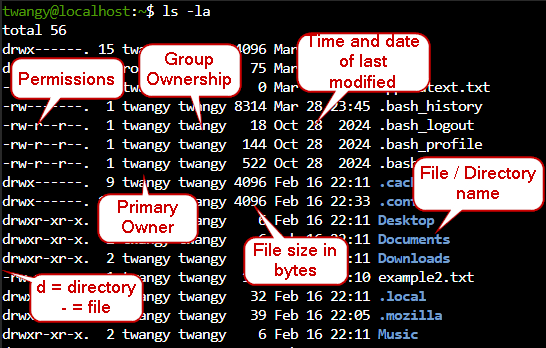
- You can also use ls to list a directory you are not inside of currently. Also, you can use ls to list specific file types by targeting the file type with a wildcard.
ls -l /var # list a directory you are not inside of currently
ls /etc/*.conf # list specific file types by targeting the file type with a wildcard
¶ Changing Directories
When you are talking about changing directories, there are two different types of paths.
AbsoluteandRelativepaths,Absolutepaths are where you are very explicit whileRelativepaths can change depending on where you are actually residing inside of a directory.
- The pwd command is very useful; it will print the working directory you are inside of.
pwd
- Changing directories is done with the cd command.
cd # Navigate back to home directory
cd .. # Move up one directory / folder
You may notice a ~, that will represent your home directory.
For an example of a Relative path, we can travel to the Downloads folder by typing this.
pwd # Confirm we are inside of home directory
cd Downloads/
An Absolute path would look like this
cd /home/twangy/Downloads
- We can easily use
Relativepathing to swap to a folder that is one directory up.
pwd # Confirm we are inside of /Downloads
cd ../Music # Change directory to another folder inside the home directory
Absolutepathing is a much better option to travel to a folder inside of a root directory,Relativepathing will not be a good solution for this
cd ../../../tmp # Not a very good solution, high cortisol
cd /tmp # Much easier, low cortisol
- If we wanted to go back to the previous directory we were inside of, we can easily use cd -
cd /var/mail
cd # Navigate back to home directory
cd - # Takes us back to previous directory
¶ Creating / Deleting / Copying / Moving
¶ Create Directories
Making a directory is intuitive in my eyes, mkdir will be the command. The -p option is useful, it will create parent directories as needed.
- Using
Relativepathing again, we can create a new folder, usingAbsolutepathing, you can also create folders elsewhere too.
mkdir NewFolder # Relative pathing
mkdir /tmp/NewFolder # Absolute pathing
- If we are inside of a different directory, we can shorthand creating folders inside our home directory by using ~.
mkdir ~/TwangyFolder
You can of course create new folders and subfolders individually, however the more efficient way to do this is by using the -p option.
mkdir -p /NewFolder/TwangySub/SubFolder2
ls -R # List folders recursively
¶ Creating Files
If you wanted to create files, you can of course do that using vim or nano. However, just creating files directly with no content can be done with the touch command.
Example of creating a blank file
touch testfile
- If you touch an existing file, it will update the last modified time
Touch testfile # touching file after 1 minute
ls -l
- You can cat a file to view it in the terminal
cat textexample.txt
Editing files and their contents can be done with vim or nano.
¶ Deleting files
You can easily delete empty directories with rmdir, however only empty directories can be easily deleted with this command.
rmdir testfolder/ # Using relative pathing here
A much easier and more fluid command in my eyes is rm. You can use this to delete both directories and files.
Some options
-f Force a deletion
-r Remove directories and their contents recursively
-d Remove empty directories
rm [target file] # Delete a file
rm -r [target directory] # Remove a non-empty directory
rm -rf [target directory] # Force a deletion recursively
¶ Copying files and Moving files
Copying files can be functioned with the cp command, while the moving files can be functioned with the mv command.
cp [option] <target> <destination>
Some options for copy
-r Copy directories recursively
-a Preserve all the attributes, metadata like last modified time will be copied
Similar to redirection, if the destination is an already existing file, the contents are going to be overwritten.
- You can of course copy a file into a directory, alongside of copying a folder using the recursive option -r.
cp testfile2.txt Documents/ # Copy file into another folder
cp -r Documents/ NewDir # Copy folder
- If you want to copy something that is inside of a different folder, you can shorthand it by using a period .
cd Documents/
cp ../testfile3.txt . # Copy into working directory from a source file one folder up
¶ Moving files
You can rename and move files using the mv command. mv will be structured the same way where you can use
AbsoluteorRelativepathing similar to the copy command.
mv [option] <target> <destination>
- You can rename and move files using mv, here is a couple of examples. You can also rename or move folders too.
mv examplefile2.txt renamed.txt # Rename a file
mv renamed.txt Documents/ # Move to different folder
mv NewDir/ Documents/ # Move folder
¶ Text Editors
There are multiple text editors that Linux can use, I will focus mainly on nano and vim. Both are powerful while nano is a little bit more simplified.
¶ Nano
I am a bit familiar with the nano editor, I have mentioned it briefly in the past wiki pages I have for Pangolin or a VPS Setup. Nano is a nice and simple text editor.
- When creating or modifying a file, you would use the nano command like so. If you don’t have an existing file, it will create one.
nano [target file]
Unlike vim, nano lets you just simply start writing. It will also show what some hot keys at the bottom do.
The caret symbol
^will be the control key. When exiting a file, you would hit ctrl + x. One thing I like is that you can hit ctrl + e to go to the end of a line, ctrl + a will go to the beginning of a line.
- The actual extension of .txt doesn’t really matter, you can rename a file to a different extension and it will still let you open it and edit. .txt is used as an easy indicator.
mv file1.txt file2.apple
nano file2.apple
cat file2.apple
¶ Vim
I am trying to learn more about vim, it is good for larger files and more complex configuration files. Vim does have different modes; command mode is something I want to get familiar with.
You can change the different types of modes with different keys, Insert Modecan be used by hitting
ior theakey.Escreturns you to command mode.
- Similar to nano, you don’t have to use touch to create a file, you can modify / create a file like so.
vim [target file]
Once you want to exit a file and save it, you can hit
Escand then type :wq. Similarly, exiting without saving is :q.
Hint:w = write, q = quit
Command mode keys
gg – Snap to up top of a document
G – Snap to the bottom of a document
u – Undo a change
Ctrl+R – Redo a change
dd – Delete a line
- In vim, instead of using your arrow keys, you can use
h,j,k, andlto go left, right up, and down. In command mode, you can use this to quickly move arround.
For example: If I wanted to move 3 down, I would type3j
Vim Arrows
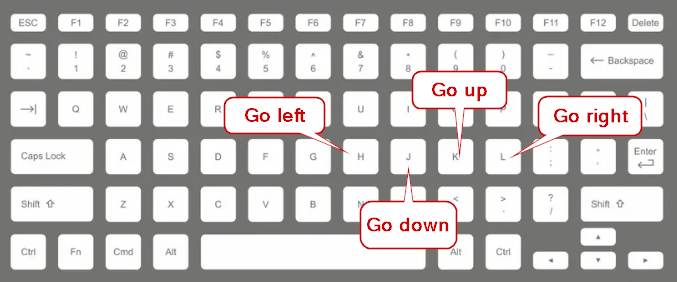
The cool thing about vim is that each action is considered atomic, it is treated as one whole action. I find that awesome because each action is repeatable, you can easily repeat a action by pressing . (period key).
You can also delete multiple lines by typing
d2j, so "delete 2 lines down from where I am". You can also copy a line by ”Yanking” a line by hittingy, pasting is throughpkey. Vim does recognize concepts of paragraphs, you can delete paragraphs by typingdip(delete inner paragraph) while copying isyip(yank inner paragraph).
Alongside of understanding paragraphs, vim recognizes concepts of words. Like yanking a paragraph, you can copy a word by yiw(yank inner word). You can change a word by ciw(change inner word). Since it is atomic, you can then hit the . period key and repeat that action.
- You can change the first instance of a word on a line throughout a document by typing :%s/[word]/[replacement word]/. If you want to replace every word throughout, you can do the same but append a
g(act globally) to the end :%s/[word]/[replacement word]/g.
Inside of vim, you can open the system’s command line by typing :%!, you can ls for example. Because of this, you can easily cata file and copy it into another text file.
¶ SSH
SSH allows you to access a server remotely if it is on LAN or exposed to the internet, the connection is encrypted and lets you run commands as if you were operating directly on the machine itself.
With
SSHthere are going to be servers and clients, similar to how I have PuTTy installed on my desktop and a VPS that I access viaSSH. The .ssh folder controls the authorized_keys file where you can setup ssh keys.
- You can view the status of the sshd service, you can also connect to a server with a client
systemctl status sshd
ssh [username]@[ip address] # Connect via ssh
¶ Setting up SSH and Key based Auth
Since there is two sides to the coin with ssh, you can configure both the client and the server in different ways. You can also setup ssh keys to be a more convient and secure option to login versus password based authentication.
¶ Server-sided configuration
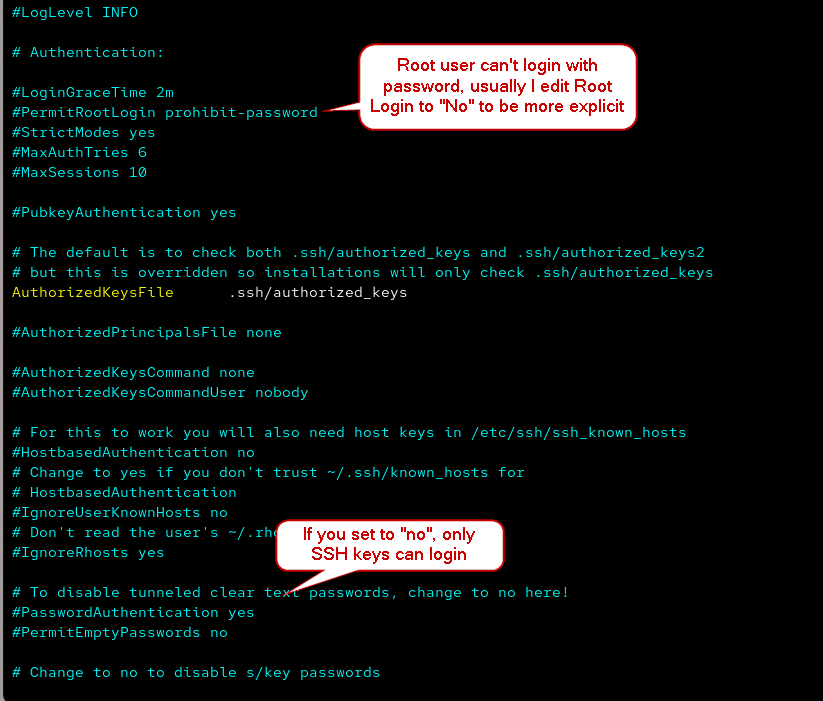
I am noticing that Red Hat and Ubuntu share a lot of similarities when it comes to setting up a SSH server, you can edit the configuration in /etc/ssh/sshd_config.
- Once you make any changes to /etc/ssh/sshd_config, you have to restart the service for changes to be applied.
sudo vim /etc/ssh/sshd_config
sudo systemctl restart sshd
Configuring /etc/ssh/sshd_config
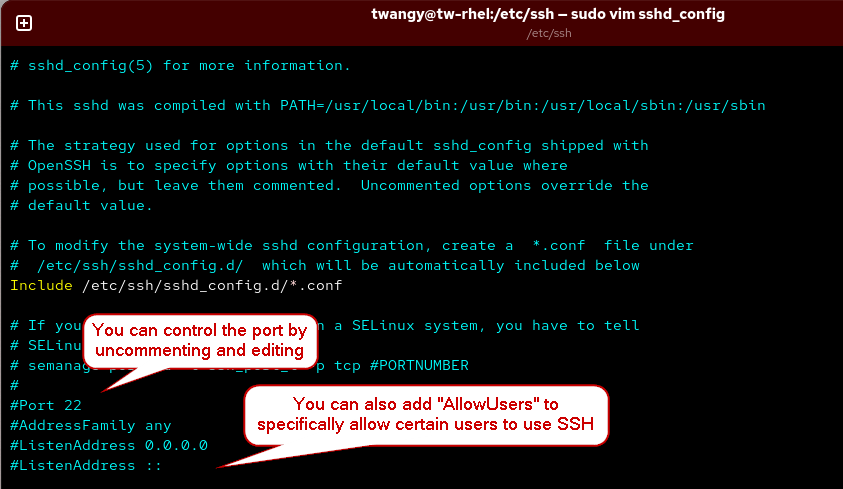
Configuring /etc/ssh/sshd_config
¶ Client-sided configuration
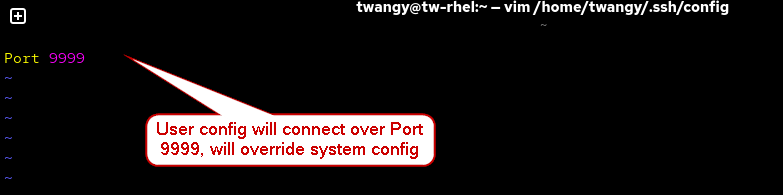
There are three different ways you can specify how the ssh client is configured, through the CLI, User Config, and System Wide Config. It will be in a hierarchy where CLI will override User Config or System Wide, then if it isn’t clarified in User Config it will go down to System Wide config.
- You can edit system wide config in the /etc/ssh/ssh_config file
sudo vim /etc/ssh/ssh_config
Configuring /etc/ssh/ssh_config
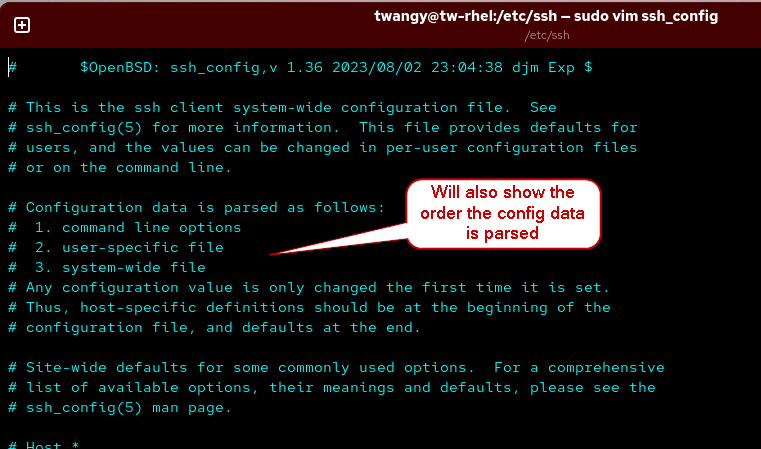
- You can edit user configs by writing into the ~/.ssh/config file.
vim ~/.ssh/config
Configuring ~/.ssh/config
- In the CLI, you can override the config files by being explicit. I can use a different port if I specify that with -p
ssh [username]@[ip address] -p 22
¶ SSH Keys
I find that SSH keys are very convenient, they allow you to authenticate using keys rather than a password. However, it is still a good idea to put a passphrase on a key so if your local machine gets compromised, the keys have an extra lock on them.
- You can view some public keys and private keys in /etc/ssh
Example of pub and private keys

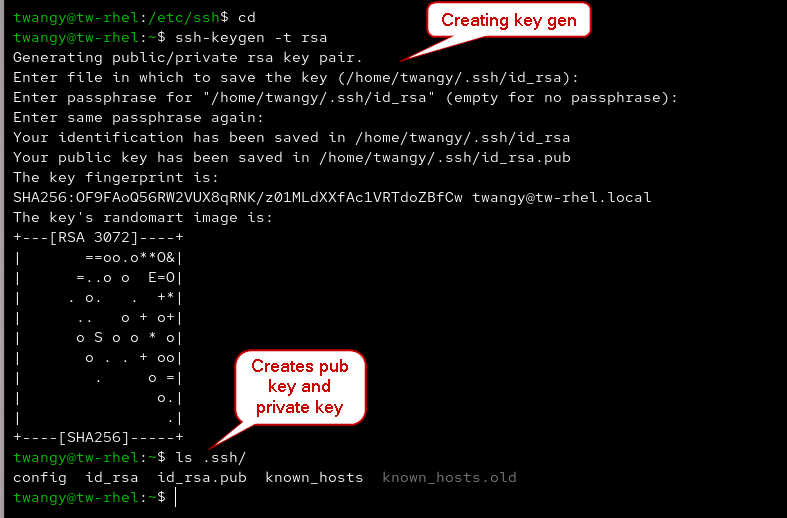
- You can create a ssh key pair by using ssh-keygen. I like to use ed25519 as it is more modern
ssh-keygen -t [type of key pair]
ssh-keygen -t ed25519 # Crate ed25519 key
Creating key pair
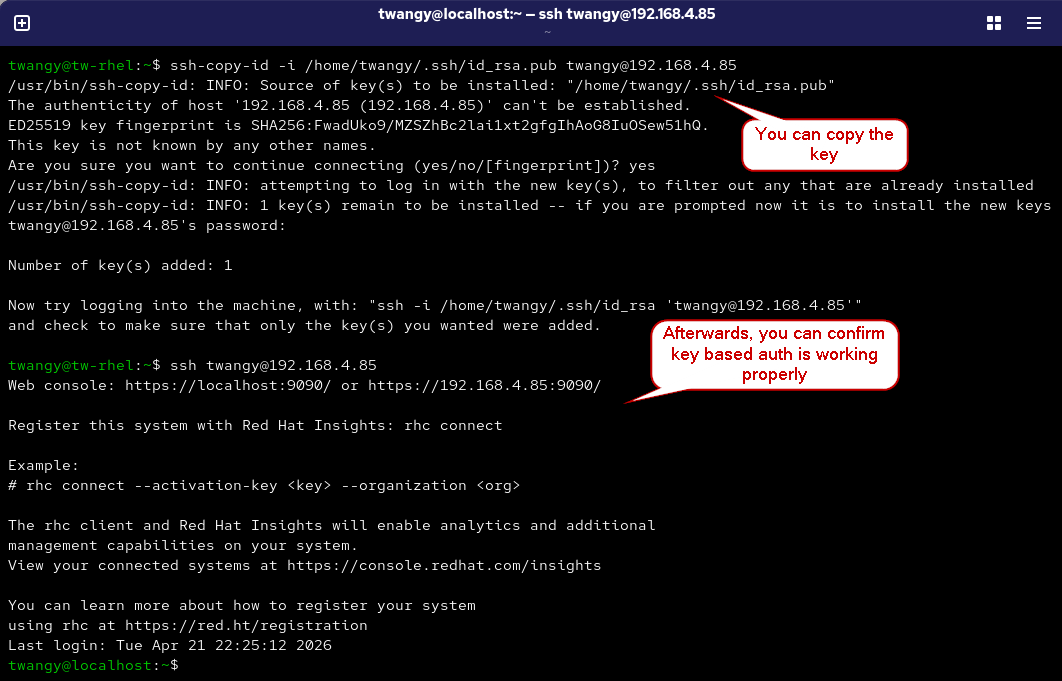
- You can copy SSH keys onto a remote server using ssh-copy-id.
ssh-copy-id -i [pubkey file] [username]@[ip address]
Copying public key to remote server
On the remote server, it will create a authorized_keys file which stores your public key
authorized_keys

¶ Transferring Files Between Systems
You can transfer files between systems using
rsync,stp, andsftp. I am a bit familiar withsftpandrsyncalready.
¶ rsync
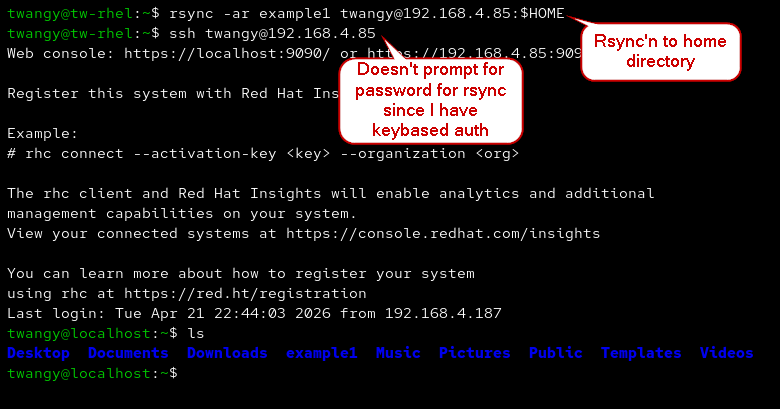
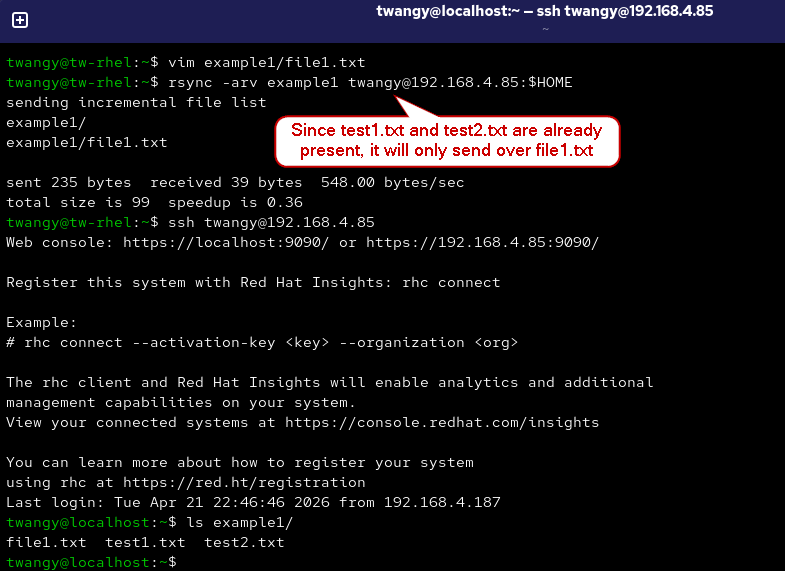
- Using rsync to transfer files, you can do it recursively or have it sync individual files
rsync -a [target file] [username]@[ip address]:[target destination] # Sync one file
rsync -ar [target directory] [username]@[ip address]:[target destination] # Sync recursively.
rsync'n recursively
rsync'n after creating new files
¶ scp
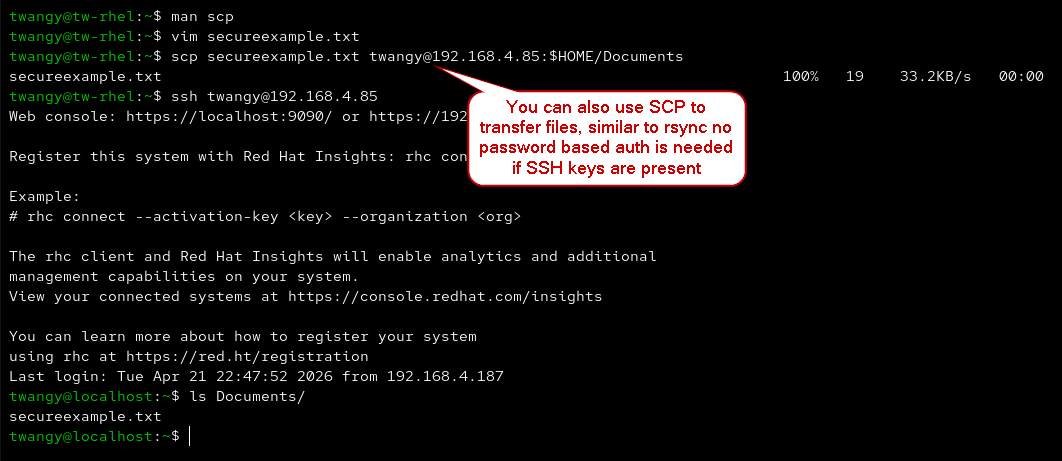
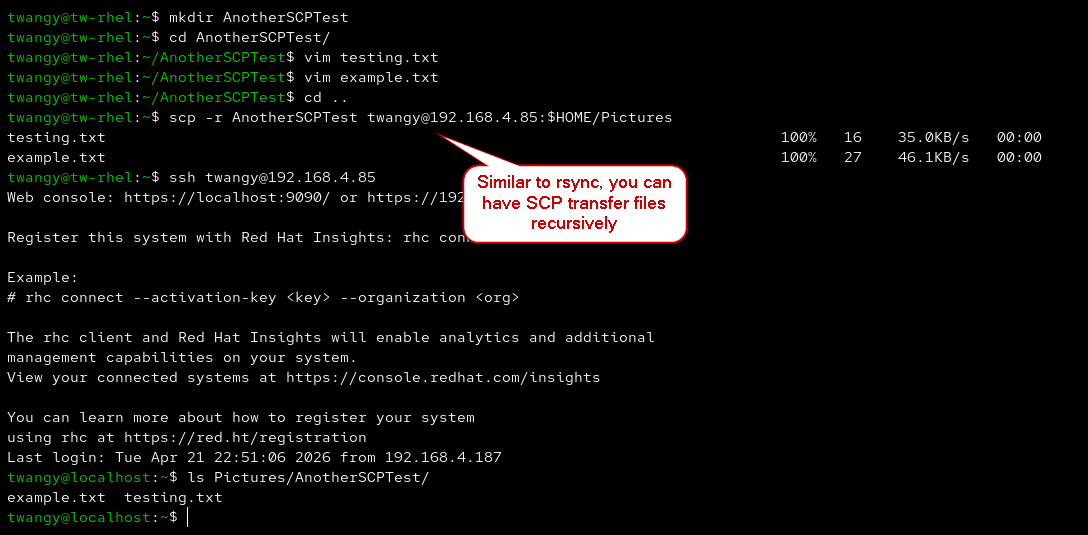
- You can also use SCP to copy files or folders recursively
scp [target file] [username]@[ip address]:[target to write to]
scp -r [target directory] [username]@[ip address]:[target to write to]
Sending files over SCP
Sending folders over SCP
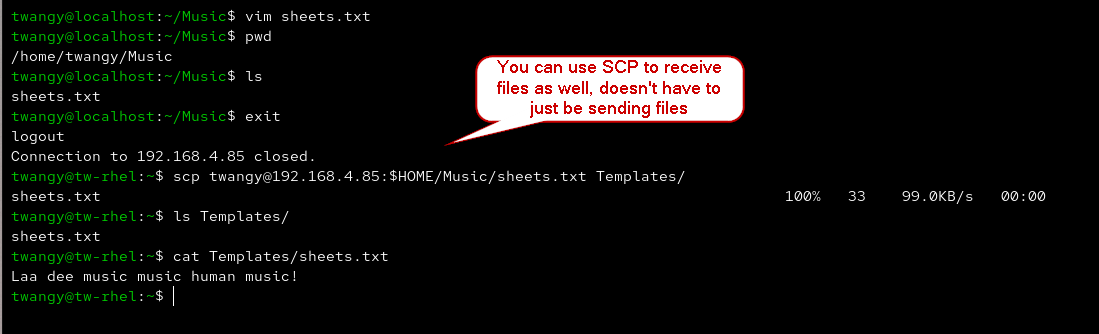
- You can also use SCP to receive files from a remote server
scp [username]@[ip address]:[target file I want to receive] [where to write on local system]
Receiving files over SCP
¶ sftp
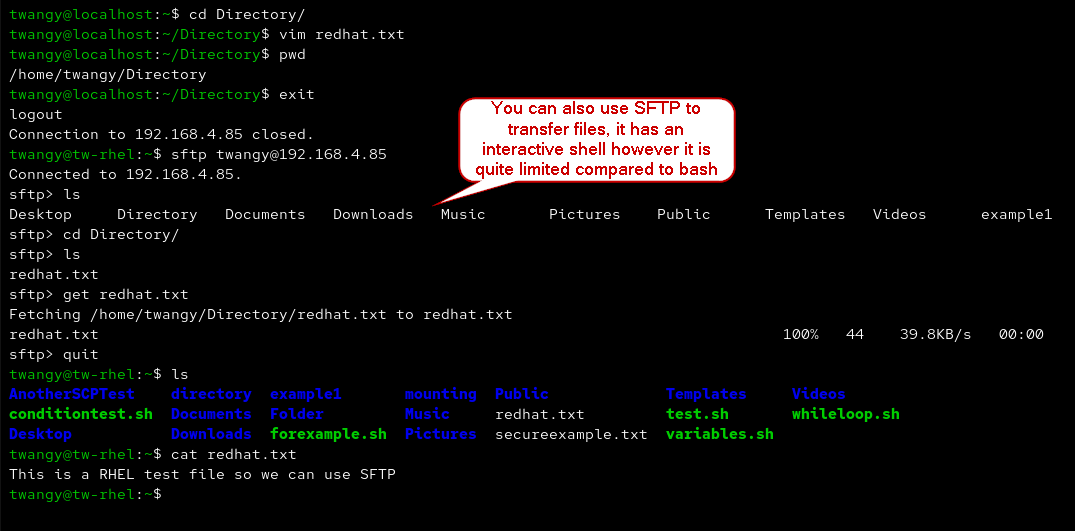
- SFTP is also pretty snazzy, it opens an interactive shell however it is a bit limited compared to a bash shell
sftp [username]@[ip address]
Using SFTP to send or receive data
¶ File permissions
File permissions are similar to Windows enviroments, you can setup group permissions, a primary owner, and control how everyone else on the system can interact with a certain file or a set directory
¶ Reading and Modifying Permissions
¶ Reading permissions
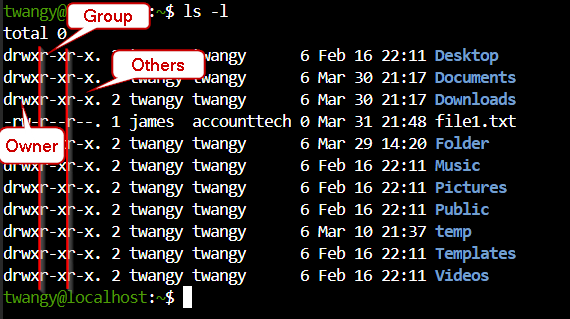
There are three columns to permissions that control
UGOaccess. U = Users, G = Group, O = Others.
Hint: You can view those with ls -l
Reading UGO
After you break those down, there is 3 levels of permissions that can be set.
Read,Write, andExecute. Dash-symbol would mean no permissions.
R = Read, W = Write, X = Execute, - No Permissions
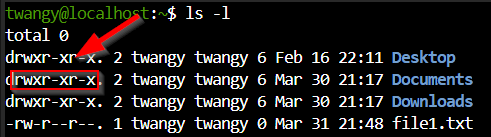
- For example, the Documents folder will have
rwxr-xandr-x. Owner will be able to Read, Write, and Execute while the primary group and others will only be able to Read and Execute.
Reading permissions
¶ Changing file permissions
There are multiple commands that can control permissions, chown to change ownership and the primary group. chgrp will modify the primary group, while chmod will control
rwxr-xr-x.
¶ Changing owner / primary group
You can edit the owner and primary group using chown for both the owner and the group. While you can individually change the primary group using chgrp. Since you can do both, alongside of just indivually changing the group permissions with chown. I end up usually using that command a lot more than chgrp
- Let’s say I wanted to change the owner, you can use chown. You have to use sudo privileges, otherwise it will error.
chown james file1.txt # You will get an error, you need super user privileges for this operation
sudo chown james file1.txt # Change owner to james
ls -l # Confirm changes
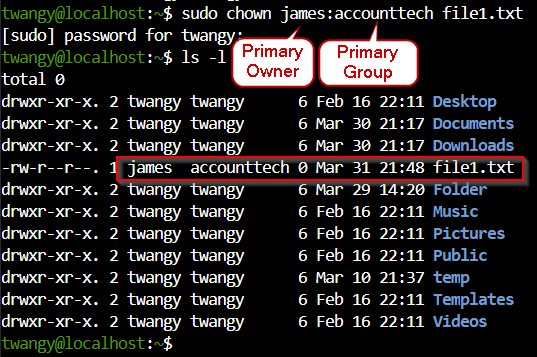
- If you add a colon, you can edit the primary group, I will use an example group I created earlier on inside RHCSA page.
sudo chown james:accounttech file1.txt # Change owner + primary group
ls -l # Confirm changes
¶ Modify file and directory permissions
Since we’re familiar with
UGO, there are two ways to edit permissions:symbolicandoctalusing chmod.
¶ Symbolic Notation
With symbolic, you use things like UGO and rwx to change perms at a more granular level, you can modify just the Owner without changing Group or Others.
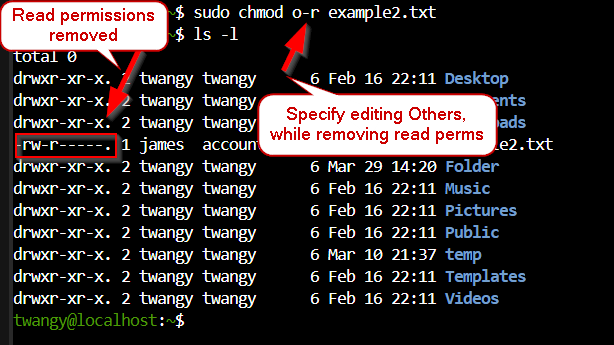
- Right now, our file is set so others can read a file. We can remove that by specifying we want to edit Others with an o, and then removing read permissions with -r.
sudo chown o-r file1.txt # Edit the Others permissions while removing read permissions
- Similarly, we can add execute permissions to the primary owner using u+x
sudo chmod u+x example2.txt
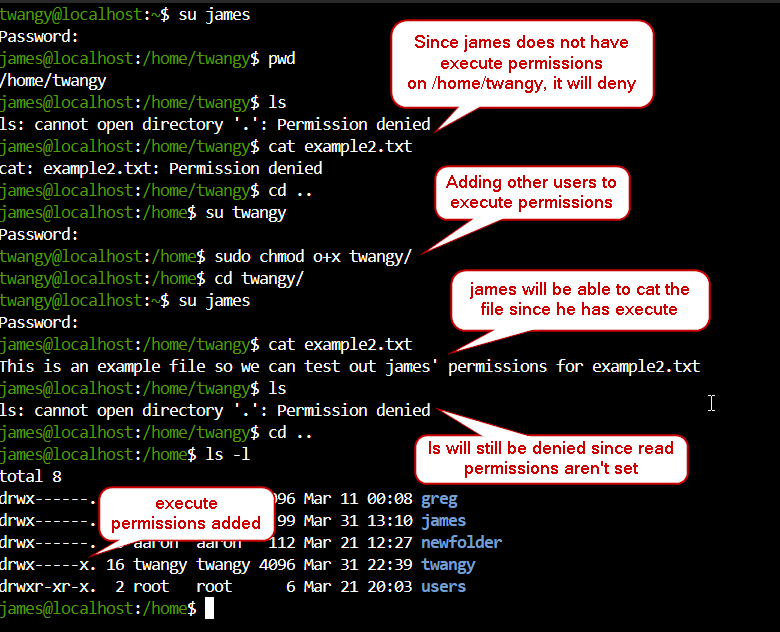
One thing to note is that the parent directory might not have permission for james, so they will not be able to
executeany commands inside /home/twangy. You can add execute permissions to the parent directory, now james can execute commands however they aren’t allowed to read the contents of the directory.
James can now cat the specific file after adding execute permissions, however they can't read the output of ls
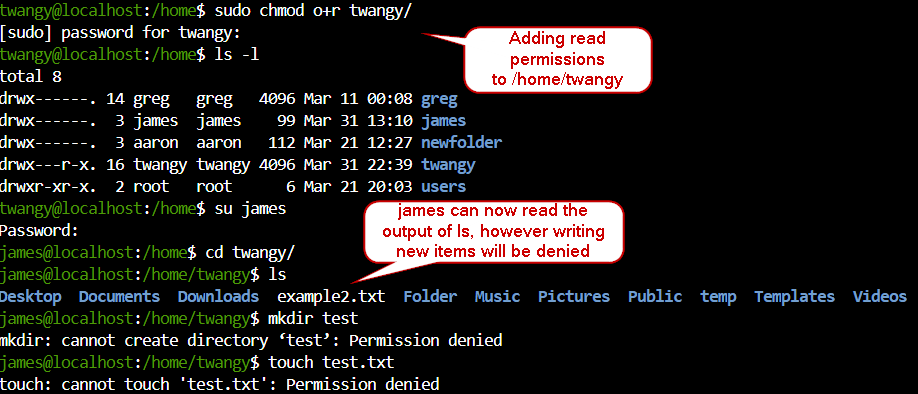
- If we were to add read permissions to the /home/twangy directory, james will be able to read the output of the ls command. Since he does not have write permissions, he cannot write inside of that directory.
- If you wanted to change multiple permissions using
Symbolicnotation, you can do that like so:
sudo chmod u+x, g-r, o+w example3.txt # Add execute for owner, remove read from group, add write to others
sudo chmod u=r example3.txt # Final permissions for owner will be read
sudo chmod ugo=rwx example3.txt # Owner, group, and others will have read, write, and execute
¶ Octal Notation
With Octal notation, you can setup permissions using 3 different numbers, they will let you modify UGO permissions. You may notice rwxr-xr-x, that will be 755 permissions.
Octal Notation
R = 4
W = 2
X = 1
0 = no permissions
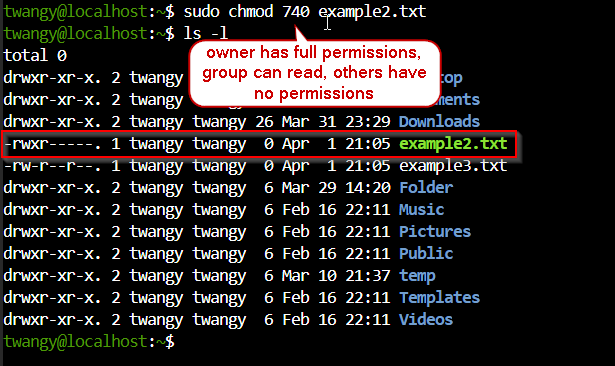
- For example, if we wanted to setup r--r--r--.
sudo chmod 444 example3.txt
- Another example, you can setup rw-rw-rw alongside of also removing permissions for others.
sudo chmod 666 example2.txt # Everyone has Read and Write
sudo chmod 640 example2.txt # Owner can read/write, group can read, others do not have permissions
Example picture:
¶ Special Permissions and Default Creation Mask
You may have noticed earlier we worked with permissions like 755. There is a fourth number that can be used in front of it. By default, it will be set to 0.
0755
The first digit represents
special permissions. So instead of just rwx r-x r-x, we now have to worry about [special][owner][group][others].
Types of Special Permissions
SUID
SGID
Sticky Bit
¶ SUID
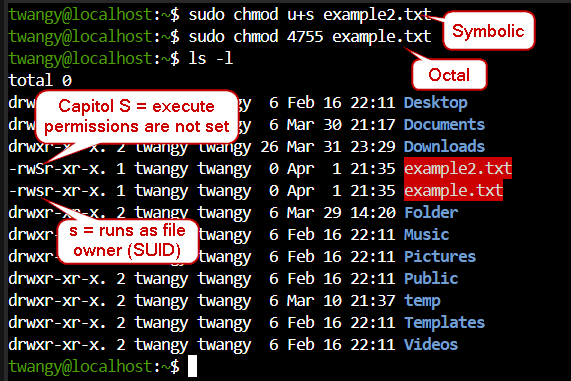
SUIDwill let a file execute with the permissions as the owner of the file, instead of the user running it with their own permissions. If you get an uppercaseS, that will mean execute permissions are not set yet on the file beforehand.
sudo chmod 4755 example.txt # Octal notation
sudo chmod u+s example2.txt # Symbolic notation
¶ SGID
As opposed to SUID, SGID will execute with the permissions of the group owner. Similarly, you will encounter a capitol S if you do not have execute permissions applied since it won’t be able to execute.
With respect to
Symbolicnotation, you would usegsince you are applying it to the group this time. WithOctalpermissions, you would apply by using2as the leading digit.
sudo chmod g+s example3.txt # Symbolic notation
sudo chmod 2750 example3.txt # Octal notation
¶ Sticky Bits
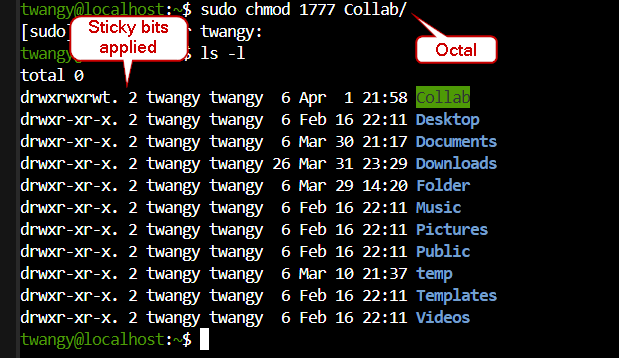
When you set up a sticky bit, only the root user, owner, or directory owner will be able to delete files. If you have a shared directory and don’t want group members to delete files, you can set up sticky bits to help address that.
Symbolicnotation will be a little counter intuitive, you do want to modify the Other’s permissions using o+t.
sudo chmod o+t Collab/ # Add sticky bit to directory
Octalpermissions will be a little easier in my eyes, since you apply this with using1as the leading digit.
sudo chmod 1777 Collab/
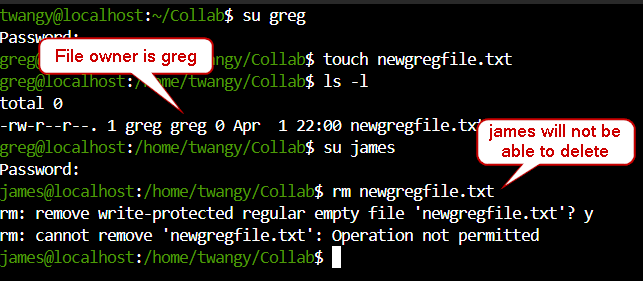
- If the sticky bit is set on a directory, and a user creates a file inside it, other users will not be able to delete it unless they are the file owner, directory owner, or root.
¶ Default Creation Mask
The default creation mask will control the default permissions that are set when you create a new file or directory.
Default Permissions during Creation
Files - 0666
Directories - 0777
If you were to create a new directory, you may notice that it actually has
755permissions applied. Additionally, a new file will have644permissions applied to it.
- The reason for the discrepancy is because of the default creation mask applying changes during creation, you can view the value of this by the umask command.
umask
- Since umask is set to
0022, it will subtract from the group and others permissions.
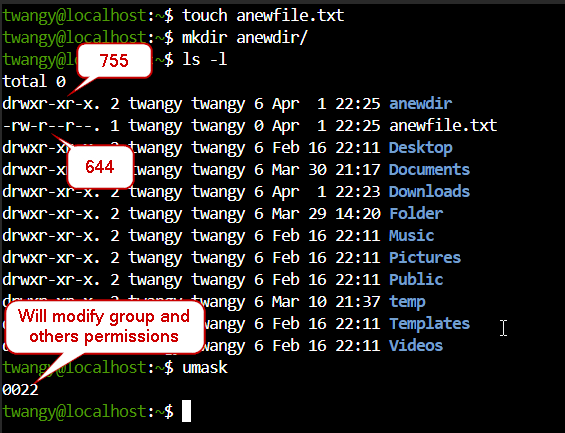
- Using umask, you can modify the mask. For example, I will edit it so there is no effect during creation of new files and directories.
umask 0000 # New files and directories will not have their permissions changed
¶ Processes
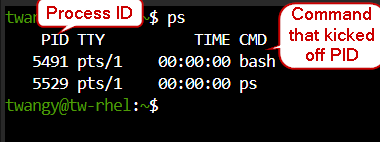
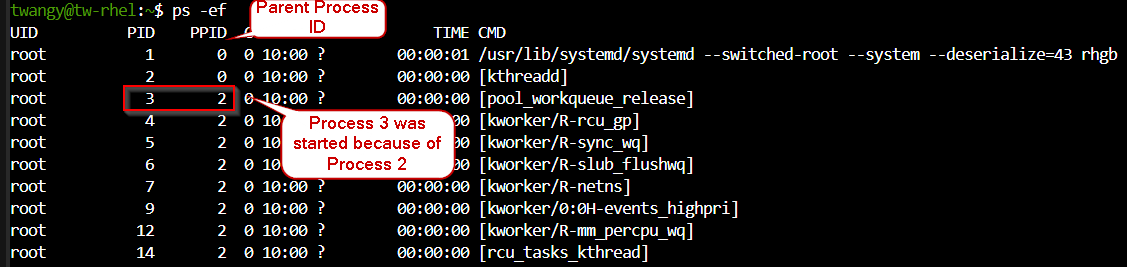
Processes use resources like memory, cpu and disk usage. If you start a process, it will have a unique process ID (PID). A PID can change, however systemd will always be process one.
You can view process information using the ps or the top command.
ps
ps -e # View a lot more information
ps -r # View running processes
pstree # View the tree of processes, makes it easier to digest
Screenshots:
¶ Viewing Processes and Resource Consumption
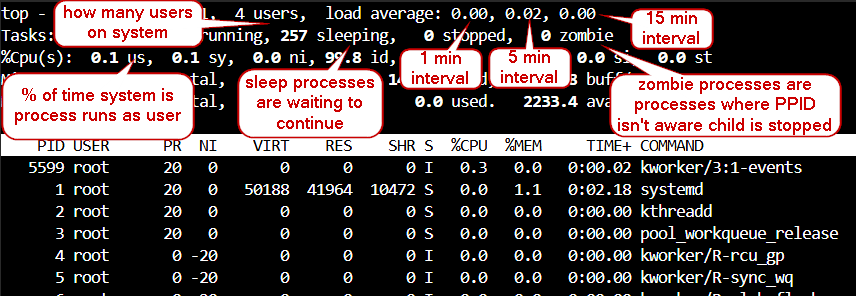
You can use the top command to view some useful information regarding processes and how many resources are being used. I am used to htop which is a bit more human readable, however that isn’t installed in RHEL by default.
top [options]
Screenshot of top
- You can have top update incrementally however you choose and set it to view highest memory consumption.
top -d 30 # Update every 30 seconds
top -o %MEM # View highest memory usage in descending order
Additionally, you can view the memory from ascending order by hitting
shift + m.
¶ Consumption of memory by processes
You can use the free command to display used and free memory on the system alongside of Swap memory.
free [options]
free -h # View in human readable
Screenshot of free -h

One thing to note, data written onto the system will be
periodicallywritten onto the disk. It is first written on RAM, however if a system crashes and and the information is inside of RAM, it will get corrupted.
- You can use the sync command to ensure the information has been written on the disk
sync file1.txt file2.txt
sync # Sync anything in RAM onto disk
You can limit the amount of RAM the system utilizes by going into grub:
Limit RAM in GRUB
1.	Hold shift while restart
2.	Hit e
3.	Edit after the “rhgb quiet” and add “mem=[size]”
4.	Ctrl+x to boot with new settings
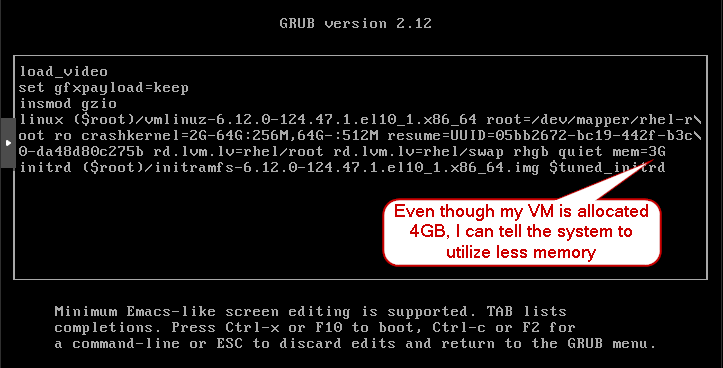
In a test example, I limited the system to only utilize 2GBs, so Swap memory has a higher chance of being utilized.

Once you reboot the system, it will boot back up with the full amount of memory allocated unless you edit grub again.
¶ Sending Signals, Jobs, and Prioritizing
¶ Sending Signals
Let’s say you are running a web server and it is consuming too many resources, you can use systemd directly to gracefully handle the process. However, sometimes you must send signals to the process by using the kill command.
kill [options]
kill -l # Print list of signal names
Screenshot of kill -l
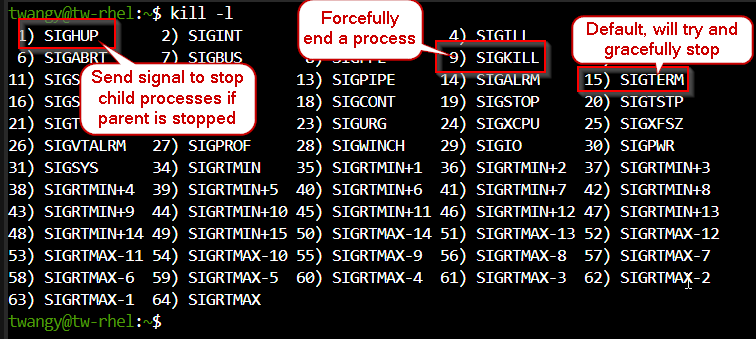
- If you have 2 terminal windows up, you can do a live demo of killing a process. By default, kill will send
SIGTERM.
ping 192.168.x.xxx
# Switch to another terminal window
ps -ef
sudo kill [pid]
# or if it is stuck, and doesn’t gracefully stop
sudo kill -9 [pid]
- You can use the pidof command to look for PID’s a little easier, you do have to be very explicit. However, you can use pgrep to be a little more relaxed
pidof ping # Must be explicit
pgrep pin # A little less explicit
¶ Jobs
When referring to a job on Linux, it is task that can be executed via shell. It can be run in the foreground as well as the background.
- For example, if you use the sleep command and try to enter additional commands, you will have to wait for it to catch up before they can be executed
sleep 10
pwd
ls
- If you
Ctrl+C, that will send a SIGINT signal to interrupt the command.Ctrl+Zwill stop the process and can be resumed later, you can view the job number with the jobs.
sleep 30
# Ctrl+Z
jobs
fg %[job number] # Start job again in foreground
- If you want to run a command as a background job and still have access to the shell, you can do that like so.
ping -i 5 8.8.8.8& # Run as background, you still have access to the shell
jobs # get job id
kill -9 %[job id]
One thing to note is that you must kill this by
Job ID!
¶ Prioritizing Resources
Processes will be queued and prioritized by using a nice value, the range of this will be -20 and +19. When reducing the priority number by -20, you are making it prioritized higher. Kind of like waiting in position 30 at a coffee shop and then removing 20 spots in front of you.
Increasing the urgency of a process will require
sudoprivileges, however users can add nice values, so the process is less prioritized.
- You can add a nice value using the nice command.
nice -n 5 sleep 60&
top # view PR and NI values
- If you use the nice command, that doesn’t change the current running process and its priority. You must use the renice to accomplish this.
sudo renice -15 -p [PID]
One thing to note is that it will override any existing nice value and change to what you specify in sudo renice [new value]